

To access saved bookmarks you will first need to login to your CamoAg account then click on the saved bookmark.
1
Login to CamoAg
2
Navigate to the Map or any Report
3
Apply the layers or filters you want to save
4
A unique URL is created for any filter applied allowing you to Bookmark the URL
5
Depending on the browser you are using, continue with the instructions below
Add a Bookmark using Chrome or Firefox
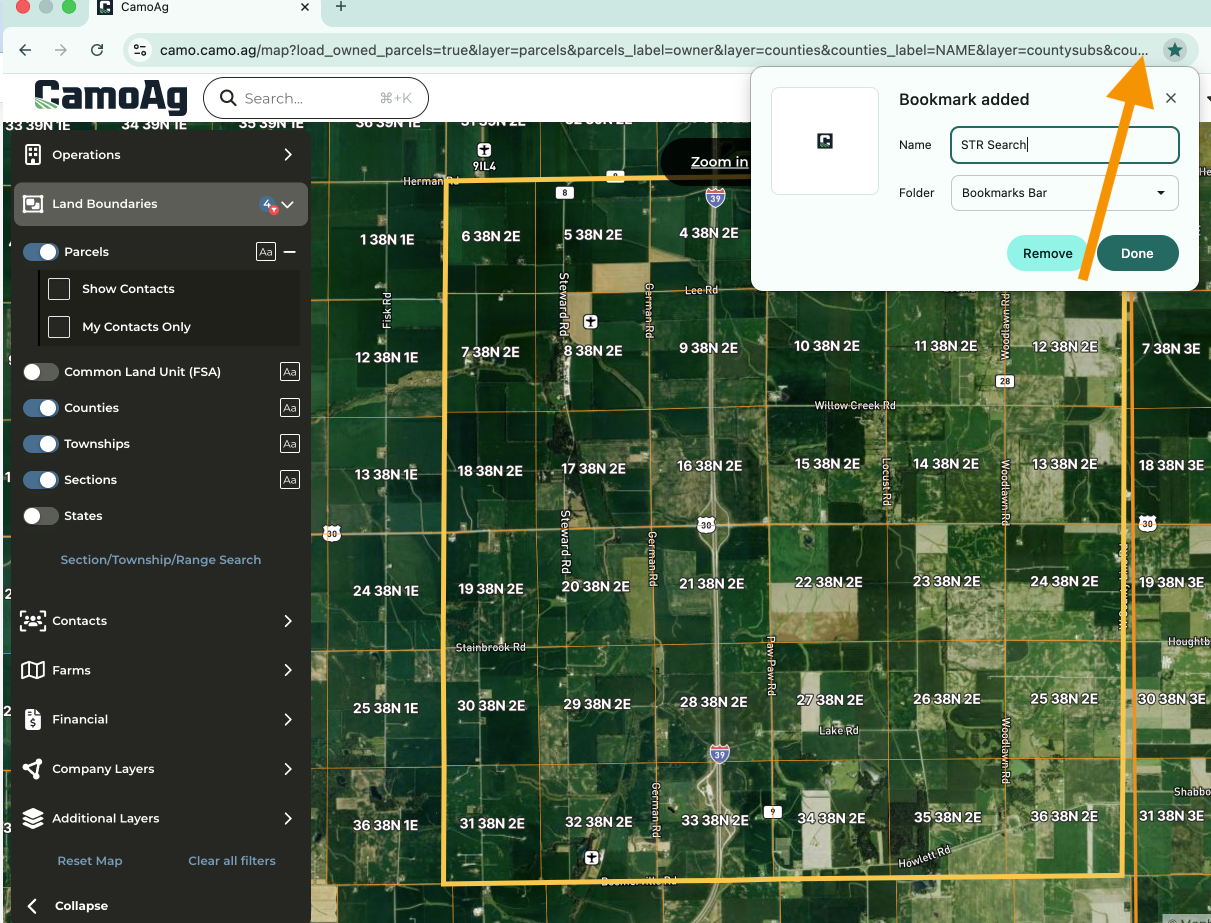
- Click the star to the very right of the URL
- Rename your bookmark
- Select where you want the bookmark to appear (suggest the Bookmarks bar)
- Click Done
Add a Bookmark using Safari
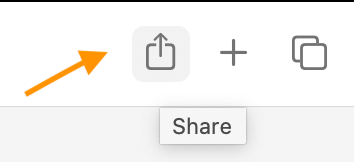
- Click the Share icon
- Choose Add Bookmark
- Choose where to add the bookmark and rename it
- Click Add