This guide specifically focuses on the workflow around creating a sales comp into CamoAg and importing that farm sale into AgWare. Refer to the CamoAg to AgWare Workflow: Creating a Subject Property guide for details around creating a farm.
Are updates from Agware instantaneous in CamoAg or is it a scheduled update?
Updates are extracted and moved daily
How do you create a Comp Sale?
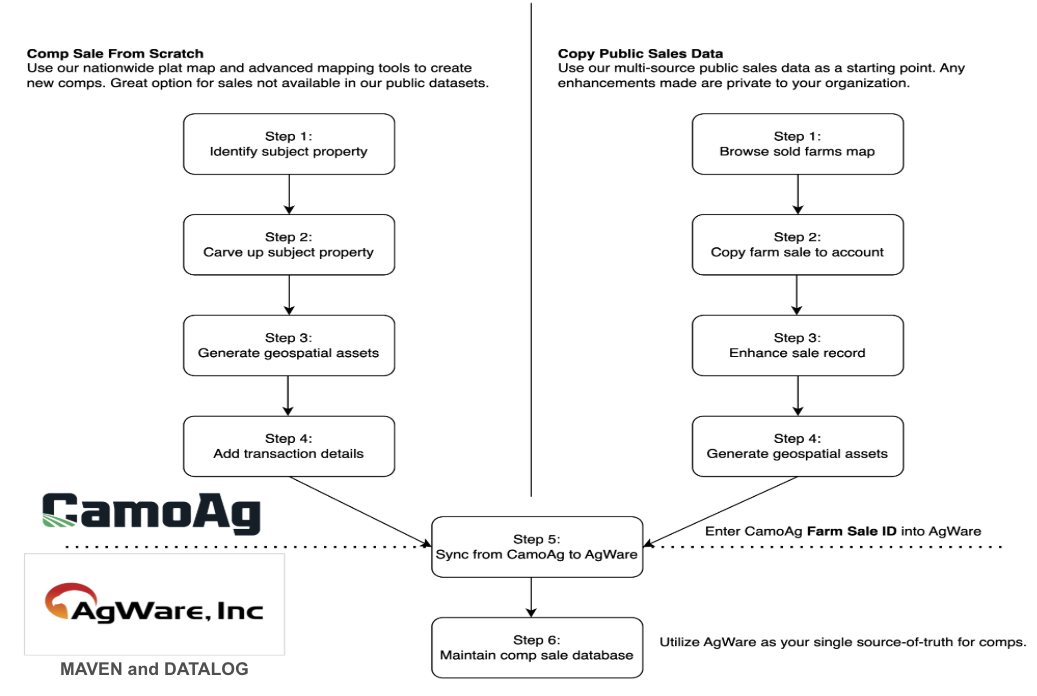
Comp Sales can be created from scratch or by copying a public sale.
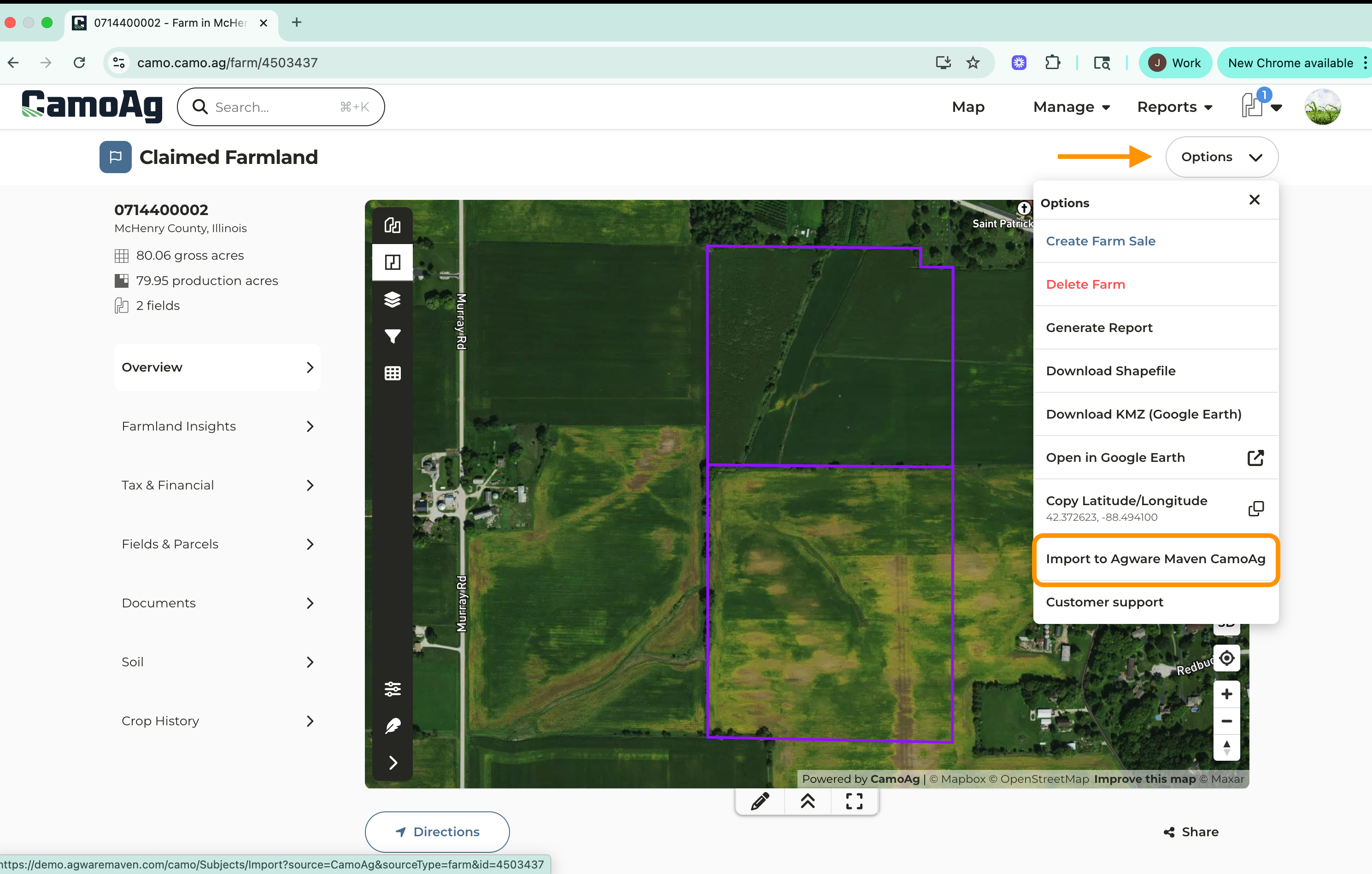
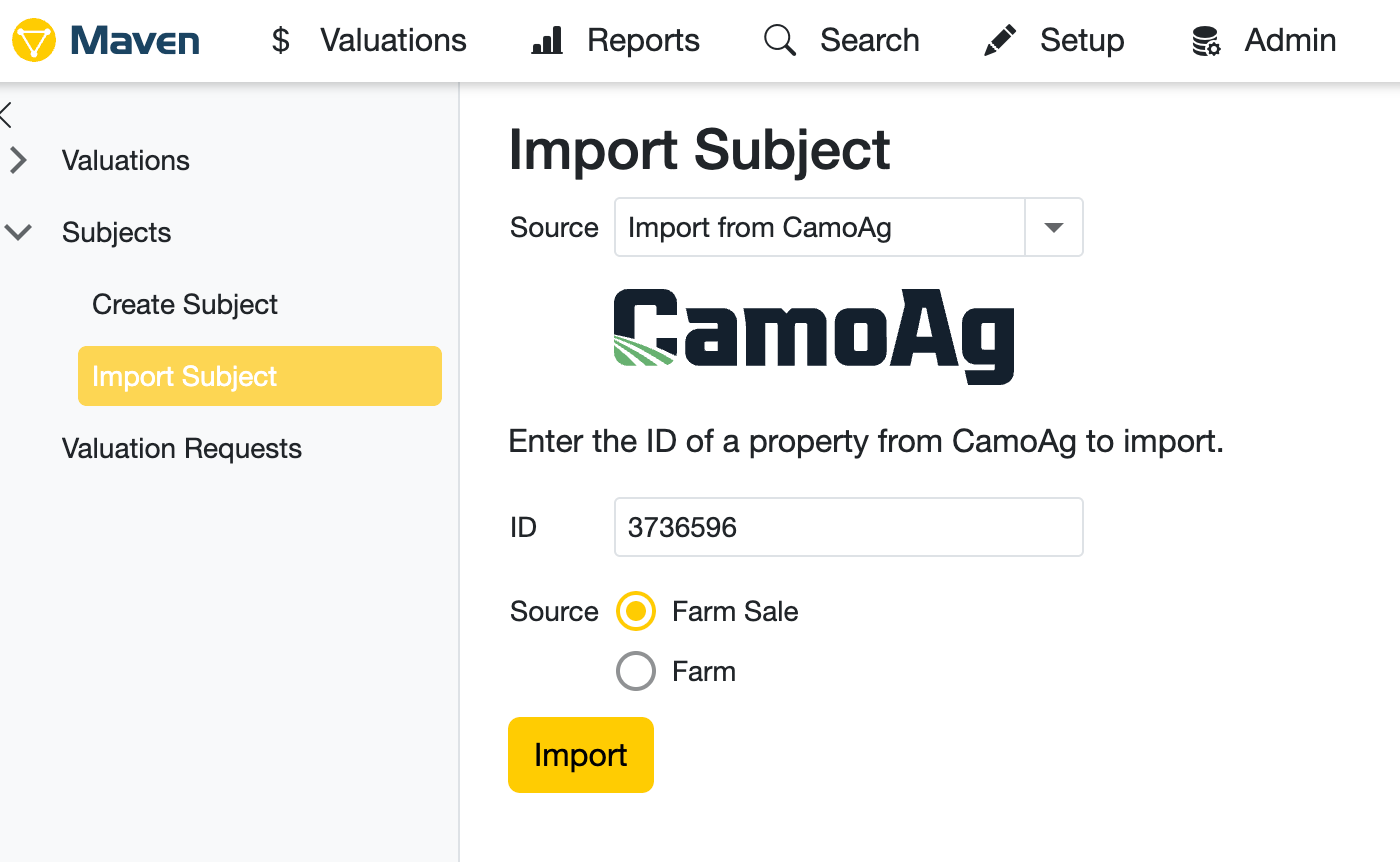
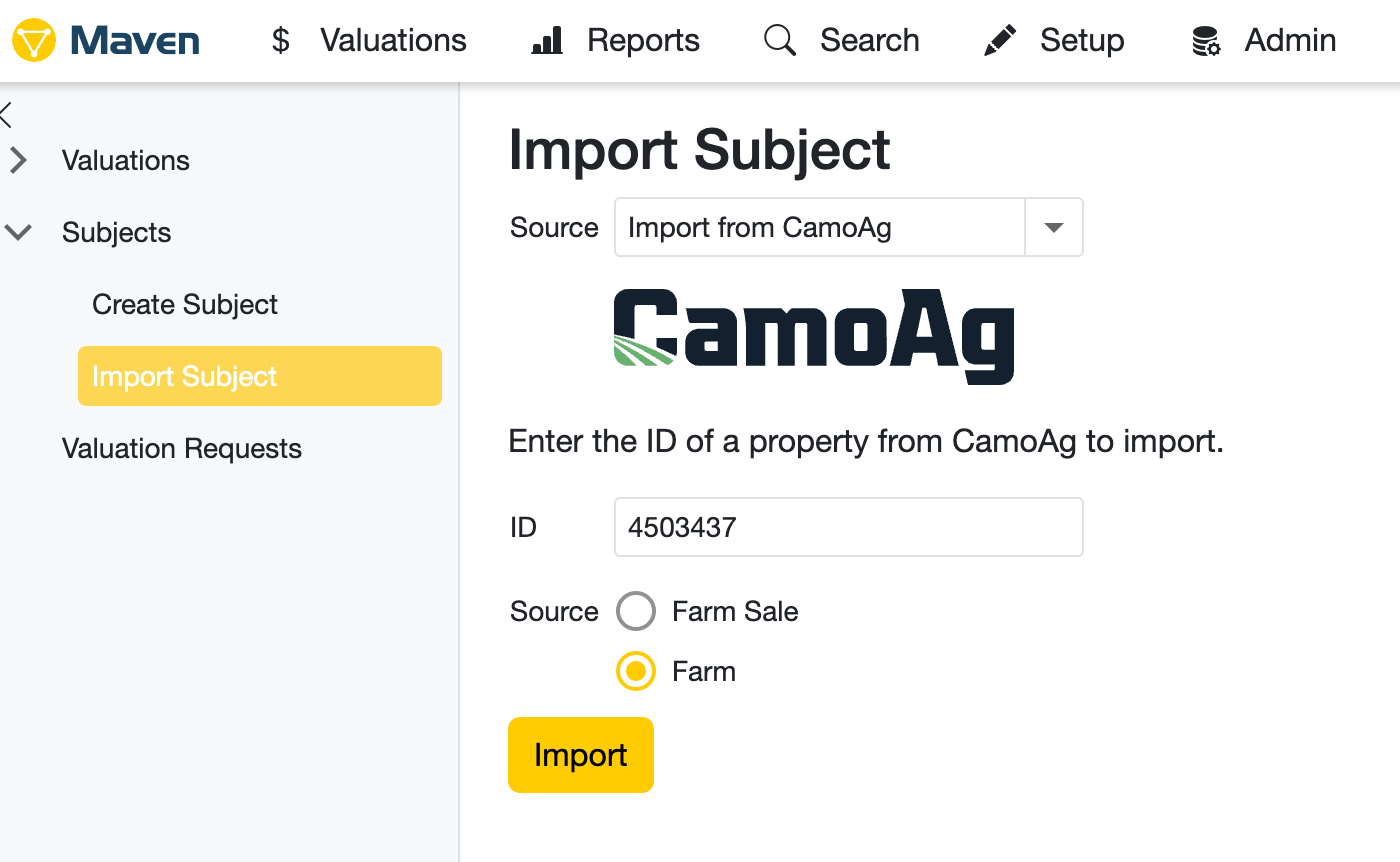
Creating a Comp Sale:You can create a comp sale when you know about an upcoming or recent private sale. Start by finding the property in CamoAg and adding the details. Save it as a draft, then update it later with the sale price and buyer information once the sale is finalized. This process helps you use early insights about the sale before it is officially recorded by the county, giving you a valuable head start.Copying a Public Sale:Copying a public sale allows you to add a vetted sale to your organization’s Comp Sales database in AgWare. By copying a sale from CamoAg, you can refine the record by adjusting boundaries and designating acres as productive or non-productive. You can also generate reports such as soil maps, aerial maps, and FEMA flood maps, and upload supporting documents for the farm.By using the FARM ID generated by CamoAg you can sync your comp to AgWare/Datalog/Maven to add it to your comp database. This step ensures your land use analysis is applied to the sale and all related documents reducing time and the risk of keying errors boosting accuracy and efficiency.Where can I find the Farm ID and why is it important?Each subject property you add to your CamoAg account has its own unique Farm ID located in the URL. The Farm ID is important because it differentiates between a Farm/Subject and a Farm Sale/Comp Sale. When importing into MAVEN or DATALOG from CamoAg, simply click the Options menu then select Import to Agware Maven CamoAg.
- Buyer/Seller - Import to AgWare/Maven from the **Options **menu of the subject sale property - Any/all documents attached to your subject property get seamlessly transferred into AgWare and stored as an Attachment
- Any additional pdf’s/supporting documents can be uploaded to Documents
- Import to AgWare/Maven from the **Options **menu of the subject sale property - Any/all documents attached to your subject property get seamlessly transferred into AgWare and stored as an Attachment
Complete Appraisal in AgWare!
Agware Maven will automatically recognize if the subject property is a Farm Sale or a Farm and mark it as such.
Please note that CamoAg is unable to provide support for Maven/Agware. If you run into questions with the Maven/Agware platform, please reach out to their team. Questions specific to CamoAg should be sent to support@camo.ag
Last modified on September 23, 2026
Assistant
Responses are generated using AI and may contain mistakes.